For the teacher
Everything you need to plan and facilitate. Print before class.
Lesson Outline
Full facilitation guide with timing, teacher notes, and differentiation for grades 6, 8 vs 9, 12. Print and keep at your desk.
🖨 When printing: enable "Background graphics" and set margins to Minimum.
HTML
↗ OpenHow AI Picks an Answer — Explainer
Visual graphic comparing the prompt tournament to how language models select outputs. For the mini-lecture and Socratic debrief.
🖨 When printing: enable "Background graphics" and set margins to Minimum.
HTML
↗ OpenPresentation deck
16-slide interactive deck plus a real-world example clip. Project for the class.
Lesson Slides
Full 16-slide deck covering all 8 phases. Use arrow keys or spacebar to advance. Open full-screen in Chrome for best results.
HTML
↗ OpenHusk.IRL — Bread Negotiation Video
A short real-world clip showing AI struggling when a prompt conflicts with its core mandate to be polite. Great warm-up or discussion prompt for the deck.
MP4
↗ Watch videoClassroom activities
Print or project. One set per group of 4 students.
Sort Cards — 16 items
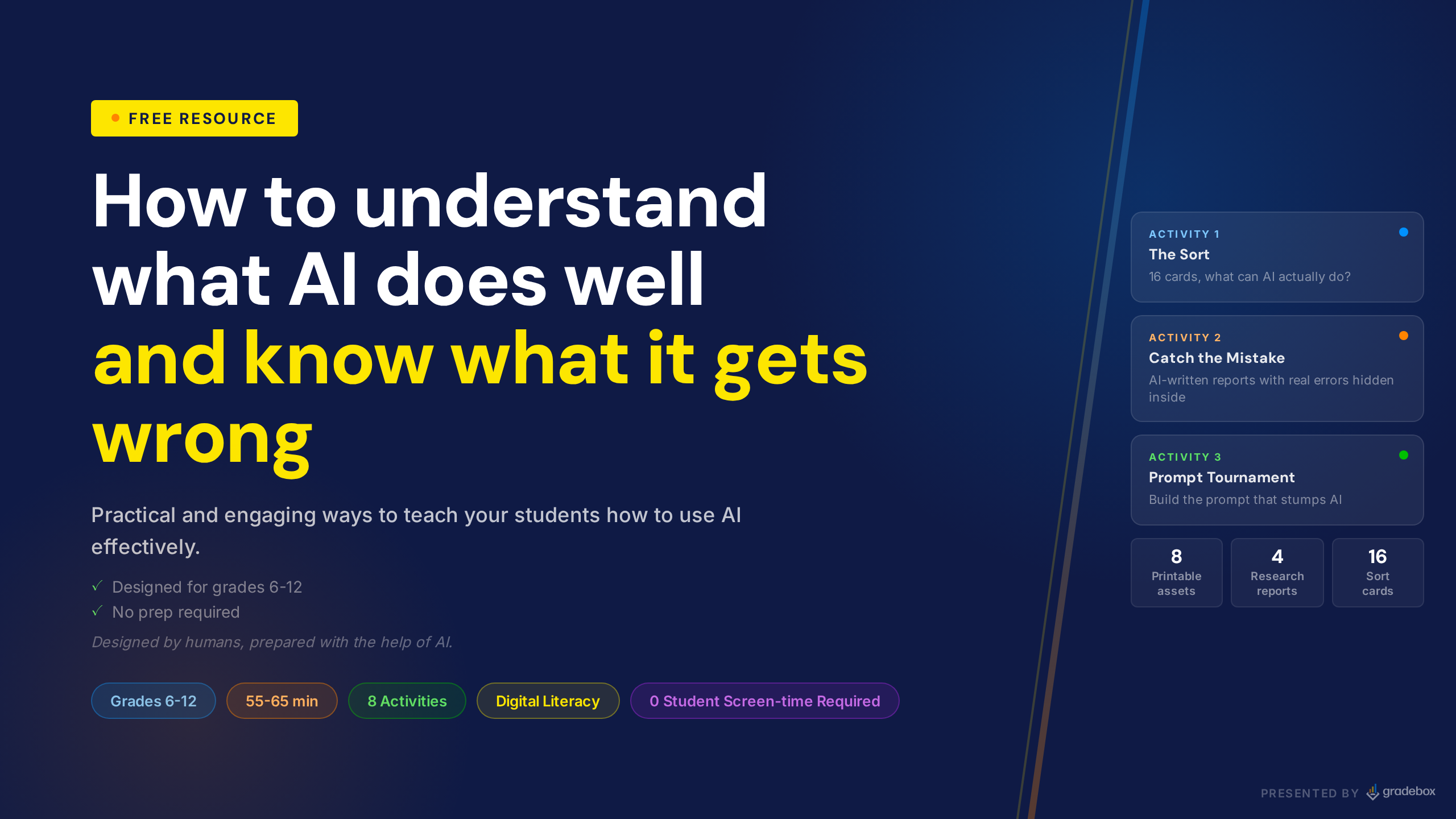
Activity 1. Students sort 16 tasks into AI-strong vs AI-weak piles. Includes teacher answer key with discussion notes. Print one set per group.
🖨 When printing: enable "Background graphics" and set margins to Minimum.
HTML
↗ OpenAI Research Reports — Catch the Mistake
Activity 2. Four AI-generated reports (sports, science, music, influencer) with embedded errors. Groups choose one and find what's wrong.
🖨 When printing: enable "Background graphics" and set margins to Minimum.
HTML
↗ OpenPrompt Tournament
Activity 3. Tournament structure and judging criteria are built into the lesson slides — no separate printable needed.
Student materials
One per student. The reference card is designed to be kept.
Student Worksheet
Follows the lesson arc. Students capture thinking across all 8 phases. Includes sort table, report findings, prompt builder, and synthesis question.
🖨 When printing: enable "Background graphics" and set margins to Minimum.
HTML
↗ OpenStudent Reference Card
Single keep card: AI strengths and weaknesses at a glance, 3 questions to ask before trusting AI output, and the tournament-to-AI parallel. Laminate if possible.
🖨 When printing: enable "Background graphics" and set margins to Minimum.
HTML
↗ OpenAssessment
Collect at the door. Score threshold: 8/10 = objective met.
Exit Ticket
10 new items, different from the sort cards. 4-up printable, one sheet per 4 students. Teacher answer key with 3-tier scoring guide included.
🖨 When printing: enable "Background graphics" and set margins to Minimum.
HTML
↗ OpenGive instant feedback on your students' exit ticket or worksheet without a computer.
Give your students instant feedback on their learning progress without taking home a giant stack of papers to grade. Snap or upload photos using Gradebox scan software and it will score them against the answer key in seconds, flagging partial credit and common misconceptions. You can see patterns and student progress and performance across the class and keep parents in the loop on their students' learning progress and class participation.